Subscriptions - Changing Activation/Cancellation Dates
Adjusting Activation Date for Subscriptions: Simple Steps
Modifying the activation date of a subscription is a straightforward process through our user-friendly system. Here's how you can effortlessly make these changes:
1. Access the Subscriptions Tab: Start by navigating to the "Subscriptions" tab in the admin view. This is your gateway to efficient subscription management.
2. Locate the Subscription: Use the search functionality to find the specific subscription you want to modify.
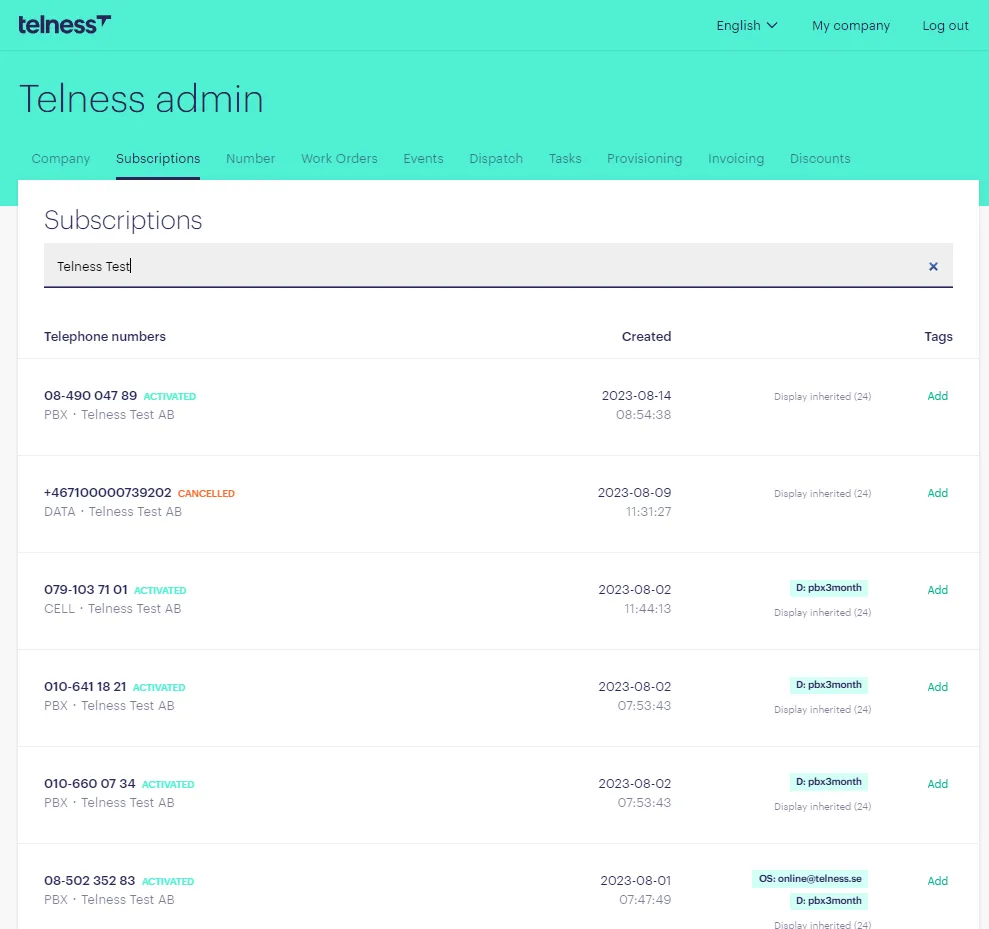
3. Open the Subscription: Click on the subscription to access its comprehensive details. This is where you'll make the necessary adjustments.
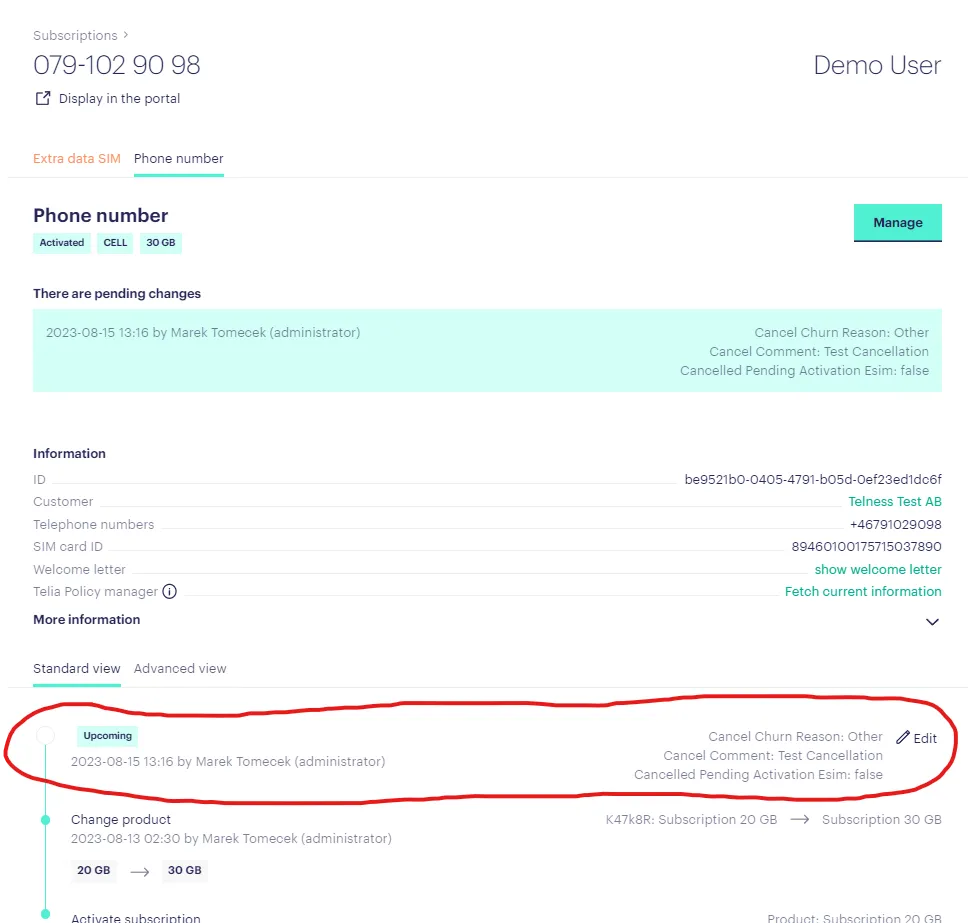
4. Click "Manage": Located in the top right corner, the "Manage" button is your entry point to a menu of management options.
5. Explore Events Log: Scroll down to the bottom of the page to find the events log, which records all subscription-related activities.
6. Access Activation or Cancellation Entry: Locate the upcoming activation or cancellation event within the log. Click on it to reveal more details.
7. Adjust Activation Date: A new window will open, providing you with various fields, including the activation date. Modify this date to the desired value.
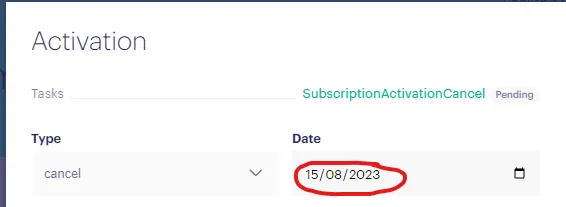
8. Save Changes: After adjusting the activation date, click "Save" on the bottom left corner of the window to confirm your changes.
And just like that, you've successfully modified the activation or cancellation date for the subscription. Our system ensures a smooth process, allowing you to tailor subscription management according to your needs.