Subscriptions - Changing a product
Changing a Product for Subscriptions: Step-by-Step Guide
Updating a subscription's product is a straightforward process with our intuitive system. Here's how you can seamlessly make changes:
1. Access the Subscriptions Tab: Start by navigating to the "Subscriptions" tab within the admin view. This is where you'll manage your subscriptions efficiently.
2. Locate the Subscription: Find the specific subscription you want to modify. You can use the search feature to quickly locate it.
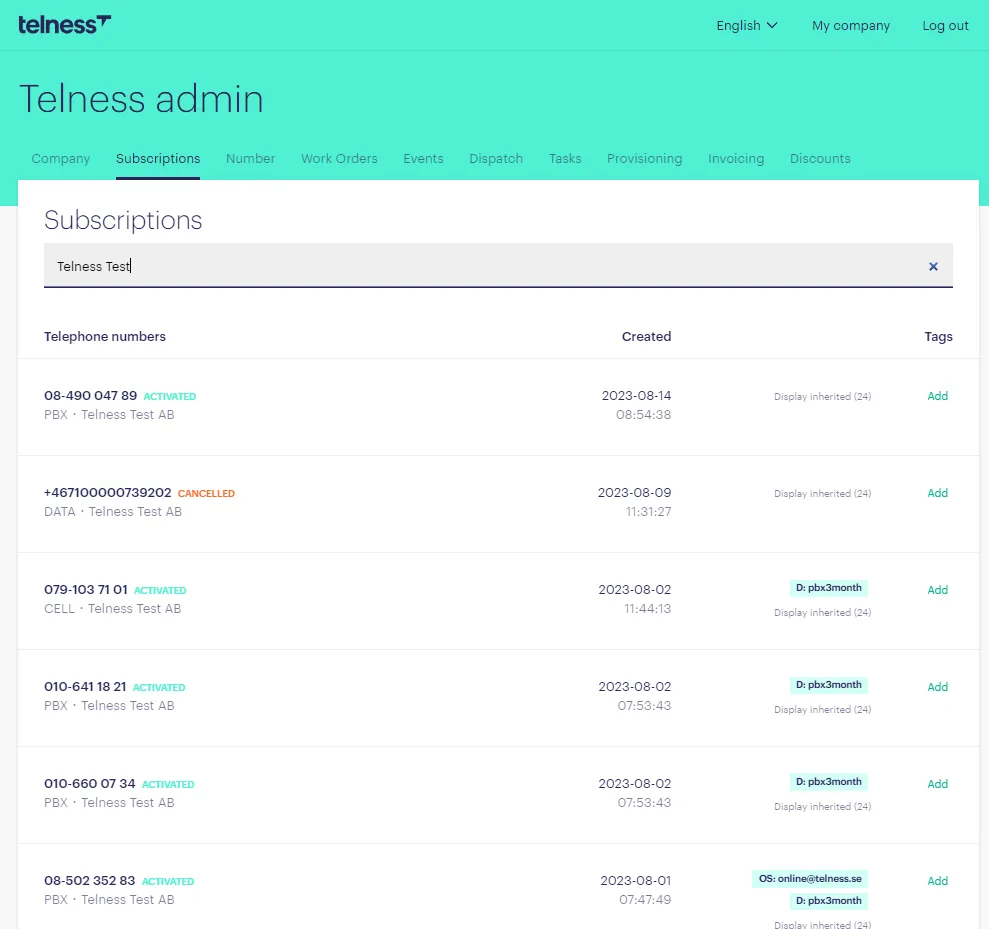
3. Open the Subscription: Click on the subscription to access its details. This is your control center for making changes.
4. Click "Manage": Look to the top right corner and click the "Manage" button. This opens up a menu of management options.
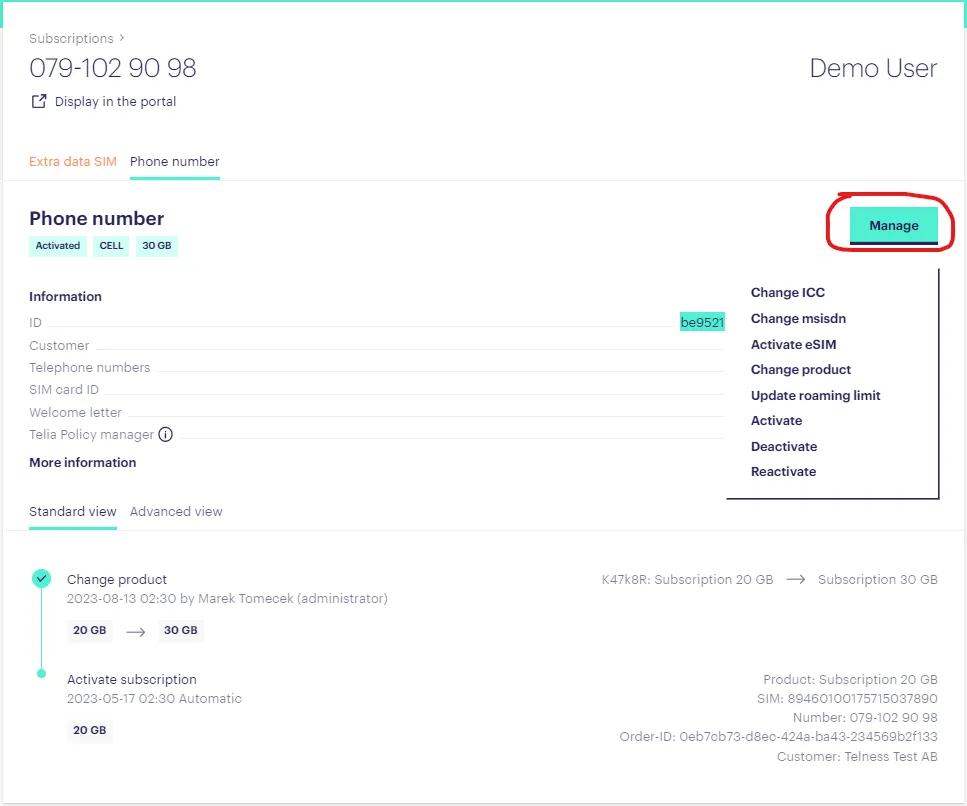
5. Deactivate the Subscription: To begin the change process, click "Deactivate" and wait for the deactivation process to complete. This step is crucial to ensure a smooth transition.
6. Access the Change Product Option: After deactivation, you'll notice the "Change Product" button within the same menu. Click it to proceed.
7. Select the New Product: A new window will appear, presenting a dropdown menu. Choose the new product you wish to assign to the subscription and press save on the bottom left side of this window.
8. Activate the Subscription: With the product change chosen, click "Activate" in the manage menu. Wait for the subscription to be reactivated, completing the process.
By following these steps, you'll be able to change a subscription's product effortlessly, ensuring accurate and up-to-date services.