Numbers - How do I make a number available for use?
This help article will discuss how to update one or more numbers using a .csv file. This article will walk through the steps of preparing and uploading the .csv file to the properly updated numbers.
File Preparation
The first step is to prepare the .csv file with the numbers you wish to update. The file can be named anything, but best practice is usually to name it NumberUpdate.csv.
When writing each number into the csv, please make sure to utilize the following format for each line:
,,,,+46XXXXXXXXXXXX,,,,,,GRADE,TYPE,PARTNER,AVAILABLE,2021-11-30T15:31:19.723108Z,,,,2021-11-02T15:31:19.723108Z,2021-11-02T15:31:19.723108Z
Regarding this format, there are a couple of things to pay attention to:
- All numbers should start with the +46 prefix instead of 0 (070 becomes +4670)
- GRADE should usually be replaced by 0
- TYPE is often one of these four:
- CELL
- FIXED
- DATA
- MBB
- PARTNER is the full name of the partner as a single word, as an example:
- PARTNERONE (Partner One AB)
- PARTNERTWO (Partnertwo AB)
- AVAILABLE should be left as is
- All three of the timestamps should be set to current date, for example 2023-08-09T00:00:00.000000Z
In the Portal
Once the .csv file is prepared with the necessary numbers, navigate over to the number tab in the admin view of the portal.
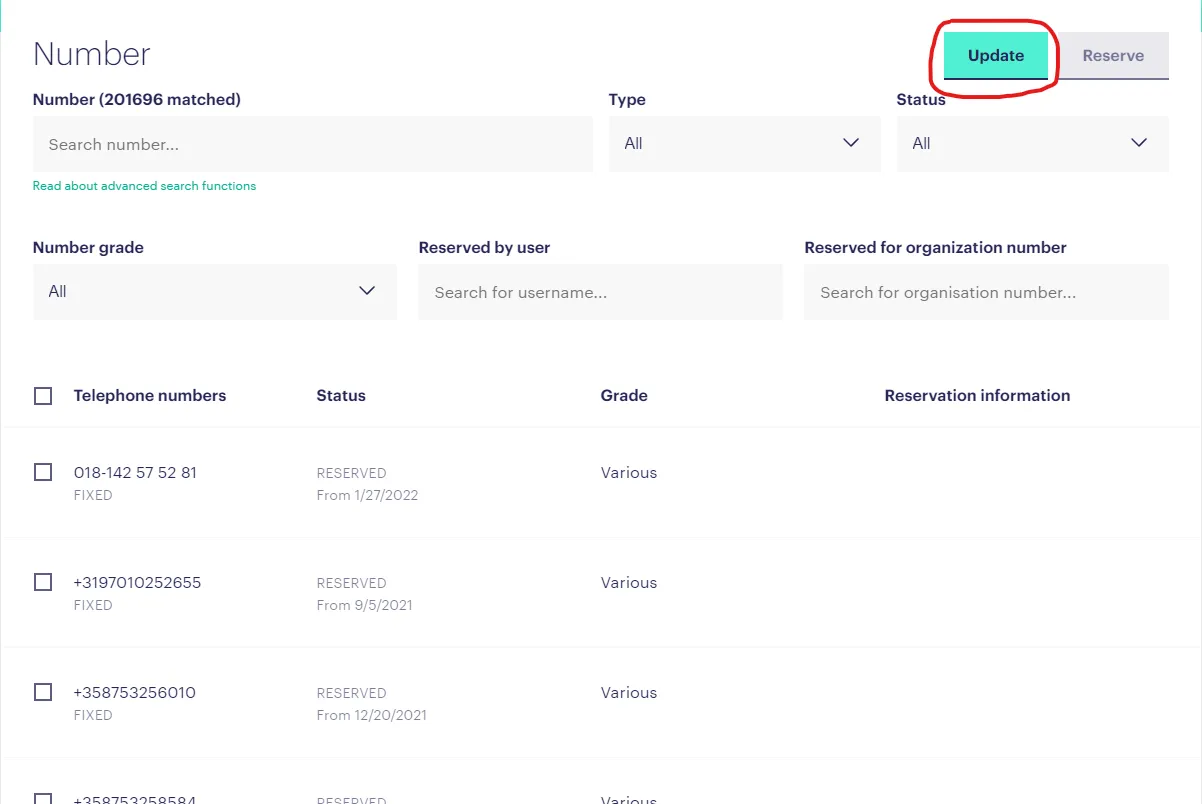
Once you have this file prepared, click the "update" button and upload the NumberUpdate.csv file.
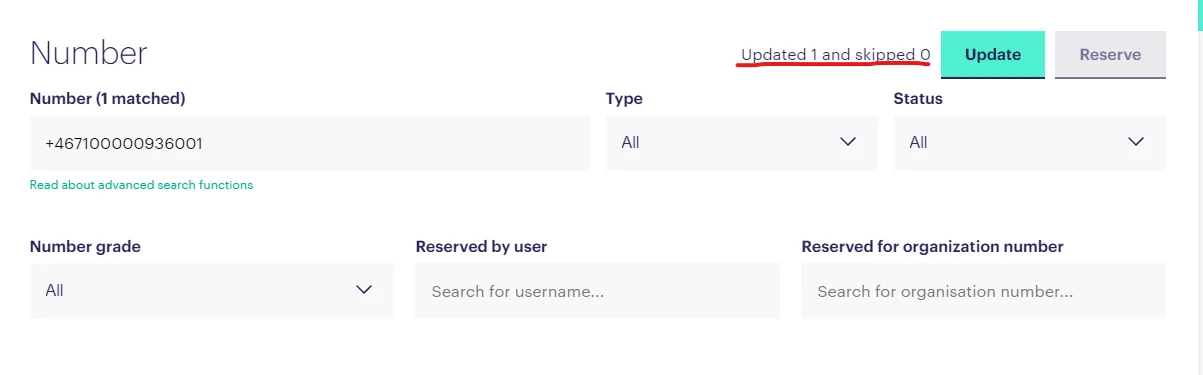
After uploading the file, you should see that the numbers have been updated next to the button.
Updating numbers can be a long and arduous process when done manually but utilizing the update feature gives you the ability to quickly update large numbers of numbers in the portal. We hope this article has been helpful in updating your numbers.